Arabic W/O Dots Keyboard Help
Arabic Alphabet without the dots like the Olden Days
Desktop Keyboard Layout
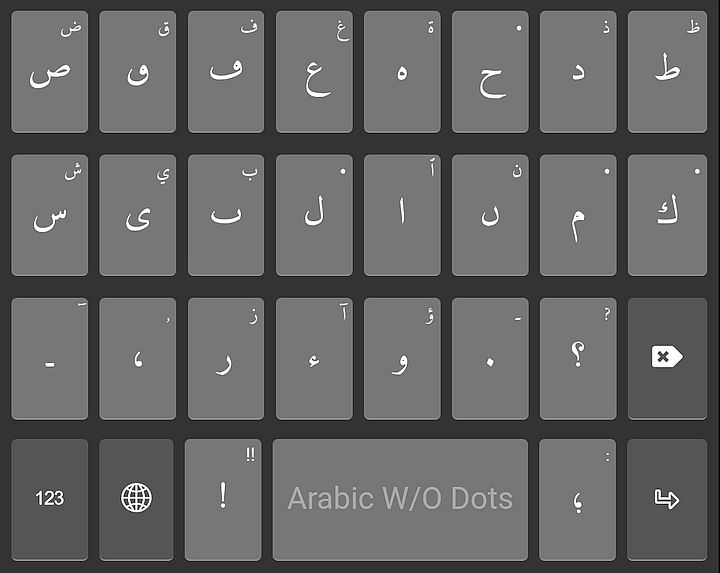
Mobile/Phone Keyboard Layout
- Single press is main character displayed and Double tap is the character displayed on the top-right corner of the key.
- In case of "ا", swipe up is for hamza above it and swipe down is for hamza below; same goes for "و" and "ي" (with 'Waaw' double tap is for 'Hamza' above, swipe up and down is for small 'Waaw' up and down respectively; but for 'Yaa' swipe up for 'hamza' above).
- In case of dotless Baa'"ب", double tap for Baa'"ب", swipe up for Taa'"ت" and swipe down for Thaa'"ث".
- In case of "ح", swipe up for Khaa'"خ" and swipe down for Jeem"ج".
- In case of dot".", swipe up is Fatha, swipe down is Kasra, swipe right is Damma, and swipe left is Sukuun.
- In case of comma"،", swipe up is 'Fathataan', swipe down is 'Kasrataan', swipe right is 'Dammataan', and swipe left is 'Shadda'.
- In case of Question mark"؟", swipe up is Small 'Alif' above and swipe down is small 'Alif' below.
- Long pressing all of them would just give some other less common characters.
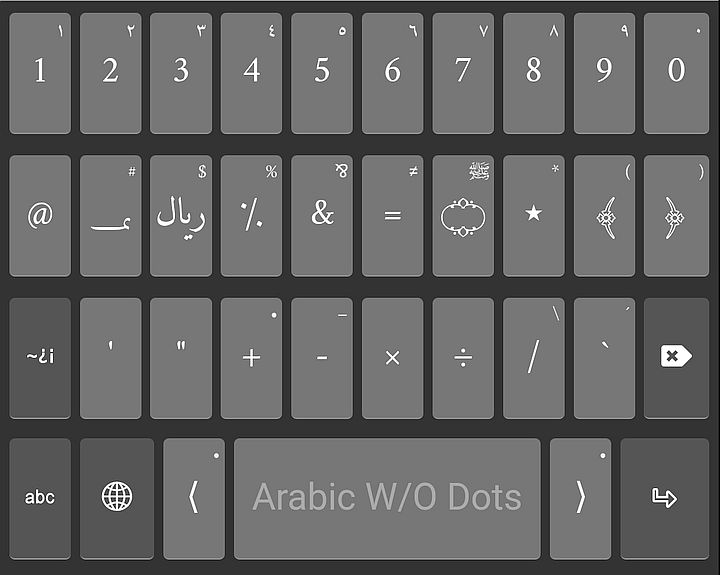
- In case of numbers, single press in Arabic Numerals and double tap is Hindi Numerals, and long press is Fractions.
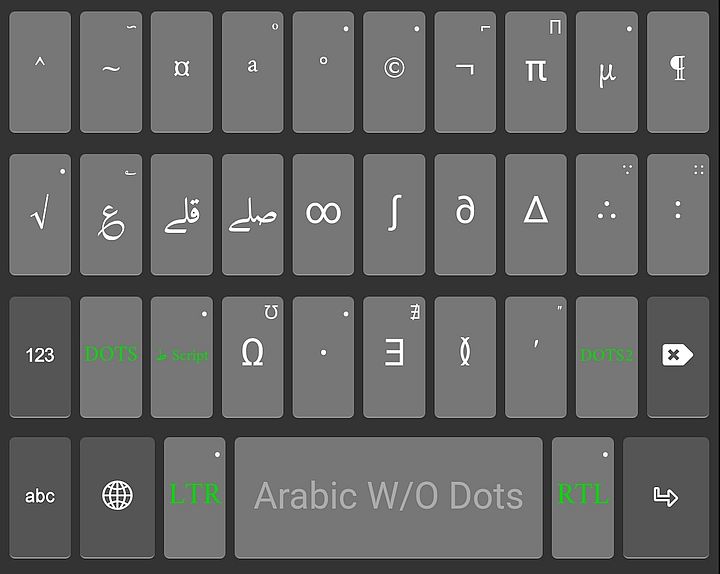
- As for others, single press is main symbol while double tap is character displayed on the top-right corner of the key; while long press is all of rest of characters.
| Long Press LTR | FullForm |
|---|---|
| LRM | Left-to-Right Mark |
| LRE | Left-to-Right Embedding |
| LRO | Left-to-Right Overlay |
| LRI | Left-to-Right Isolate |
| FSI | First Strong Isolate |
| Long Press RTL | FullForm |
|---|---|
| RLM | Right-to-Left Mark |
| RLE | Right-to-Left Embedding |
| RLO | Right-to-Left Overlay |
| RLI | Right-to-Left Isolate |
| PDI | Pop Directional Isolate |
| Pop Directional Formatting |
All Documentation Versions
- Arabic W/O Dots Keyboard Help 1.1
- Arabic W/O Dots Keyboard Help 1.0.1
- Arabic W/O Dots Keyboard Help 1.0