Options Dialog
General tab
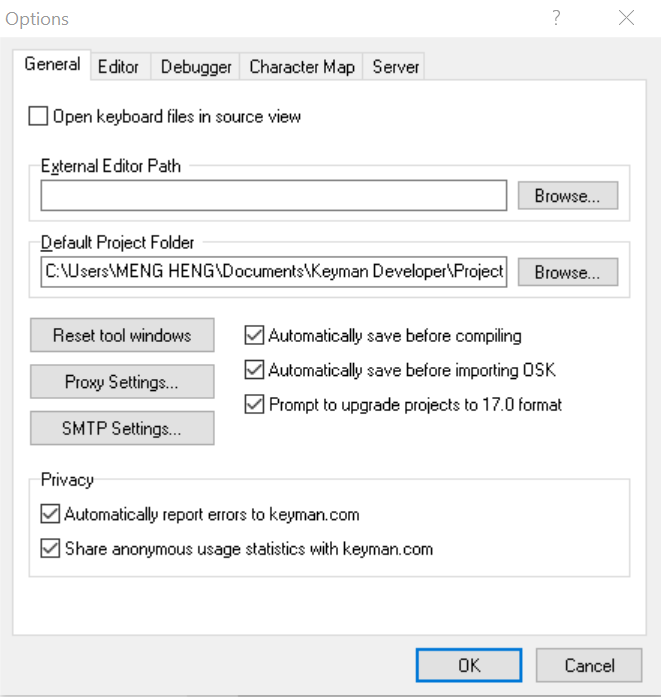
The following options are configurable in TIKE in the General tab:
- Open keyboard files in source view.
- Instead of opening a keyboard file in the Details tab, open directly into the Layout tab, Source pane.
- External Editor Path
- You can open any Keyman source file shown in the project in an external text editor by right-clicking on the file and selecting "Open in External Editor". The files available for editing externally are .kmn, .kps, and .kvks. This field configures which editor you wish to use to edit the files. Note: if you need to pass command line parameters to the editor, you will need to wrap the command in a batch file and reference the batch file here.
- Proxy Settings...
- Configure the HTTP proxy settings for online functionality within Keyman Developer, such as uploading files to Tavultesoft.
- SMTP Settings...
- Configure your SMTP server settings for email functionality within Keyman Developer, such as emailing debug URLs for the touch layout debugger.
Editor tab
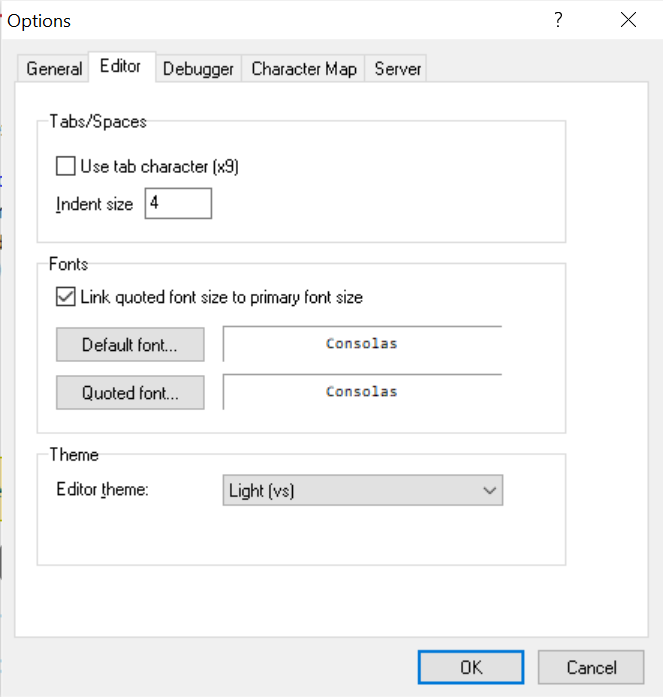
- Use tab character
- Sets whether to use the Tab character or spaces for indents.
- Indent size
- The indent size, measured in number of spaces.
- Link quoted font size to primary font size
- If checked, the quoted font size will be the same as the default font size.
- Default font
- Sets the font for ordinary text in the editor.
- Quoted font
- Sets the font for displaying comments text and strings in Keyman source files in single or double quotes.
- Editor theme
- Sets the display theme and syntax highlighting options for the editor. A custom theme can be defined in a JSON file.
Debugger tab
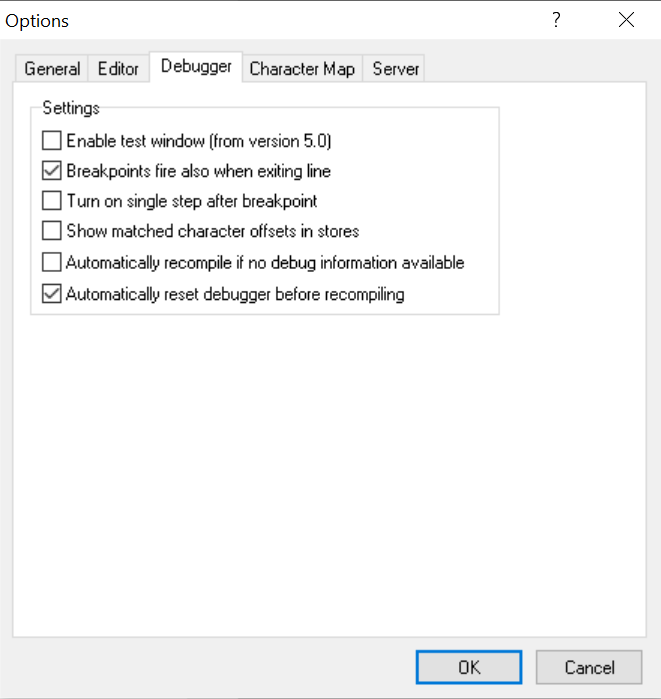
- Enable test window (from version 5.0)
- Enables the Keyman 5-style Test window instead of the debugger.
- Breakpoints fire also when exiting line
- Breakpoints will fire when a rule has finished being processed also.
- Turn on single step after breakpoint
- Activates single-step mode after a breakpoint fires.
- Show matched character offsets in stores
- Displays numeric indices of characters in stores
- Automatically recompile if no debug information available
- When the debugger starts, rebuild a keyboard without prompting if the keyboard has no debug symbols included.
- Automatically reset debugger before recompiling
- If you are debugging a keyboard, make a change to the keyboard, and recompile it, then the debugger needs to be reset in order to get access to the new keyboard. Keyman Developer will normally prompt you to do this, but if you set this option, then it will reset the debugger automatically instead.
Character Map tab

- Find character under cursor automatically
- The character beneath the cursor in the edit window will be highlighted in the Character Map. This will intelligently parse the character data under the cursor so that a character code (e.g. U+1234) will be highlighted correctly.
- Disable database lookups
- Disables looking characters up in the database.
- Update database
- Rebuilds the Unicode character database from source unicodedata.txt and blocks.txt. These files can be downloaded from the Unicode website at http://www.unicode.org/ucd/. This lets you update the character map with a newer version of Unicode. Keyman Developer 17.0 was released with Unicode version 15.1 data.
Server tab
Configure Server dialog
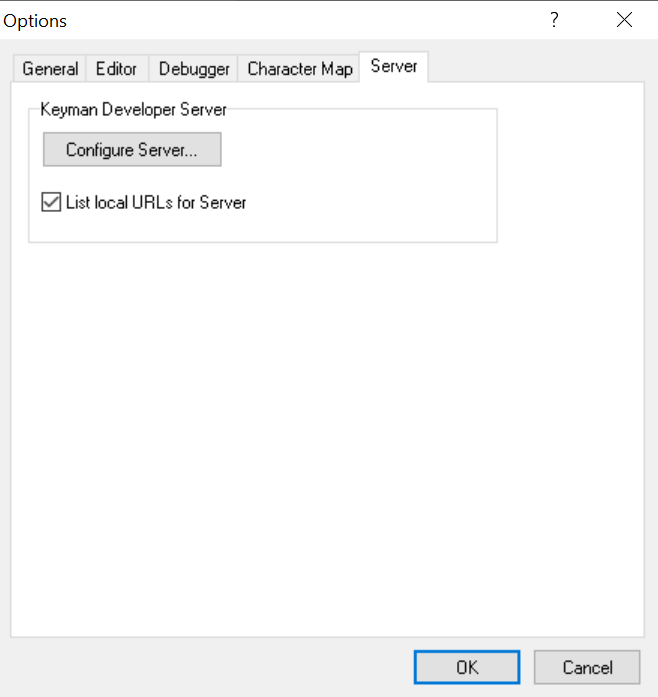
After clicking the Configure Server... button, a new window will pop-up:
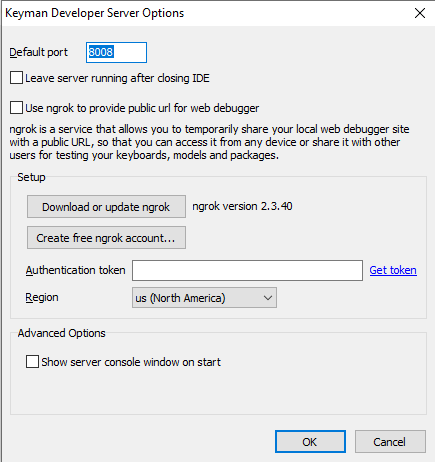
You can customize the Keyman Developer Server for testing your keyboard online and on other devices. Features of the Keyman Developer Server include:
- Seamless integration with the IDE (Start, Stop, Live reload, Recompile...)
- Sharing keyboards for testing online and on other devices
- Allowing testing across devices and networks
Keyman Developer Server integrates with a free tool called ngrok that provides a public URL to your instance of Keyman Developer Server. This URL is dynamic and can change over time, and is only available while Keyman Developer Server is running. This URL can be accessed from any mobile device that is online, whether or not it is on your local network. This means you can also quickly share keyboards, packages, and models with other users, with a minimum of difficulty.
Options available in this dialog:
-
Leave Server running after closing IDE: allows keyboard testing on local URLs even if Keyman Developer is not running.
-
Use ngrok to provide public url for web debugger: enable ngrok integration; you may need to download additional components; see below:
-
Download or update ngrok: If the text next to this button shows 'Not installed', press the button to download the required component
-
Install required redistributable: ngrok requires an additional Microsoft VC++ redistributable component; if the text next to this button shows 'Not installed', press the button and follow the prompts to install the redistributable component.
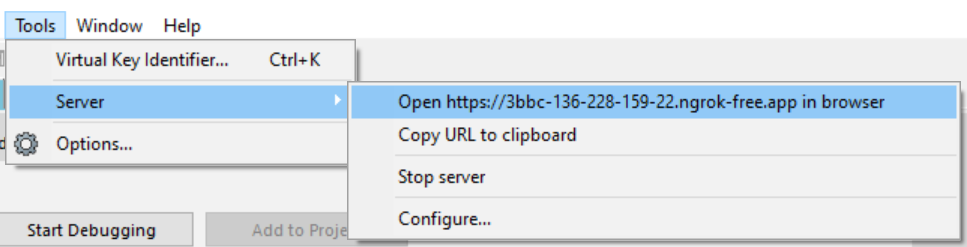
After enabling ngrok, a URL with ending a domain such as .ngrok-free.app will
appear in the Tools/Server menu and the Web and Mobile debugger pages in the
Keyboard Editor and the Package Editor:
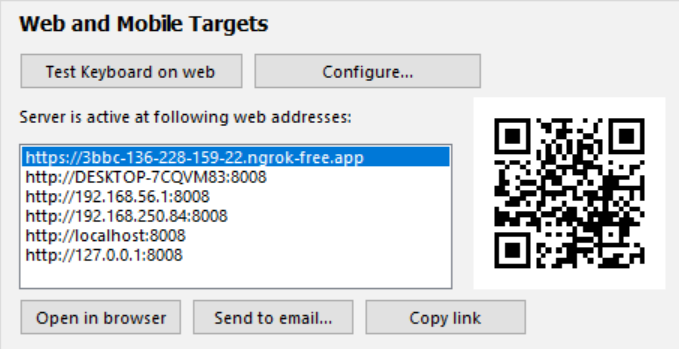
Once this is active, you can access Keyman Developer Server across multiple devices and networks using the link or QR code.
-
Show server console window on start: once ticked, Keyman Developer's server console will appear as an independent window as a node application, which may be helpful if you encounter errors as they will appear in the console.
A default message will appear when the server console starts, similar to:
Starting Keyman Developer Server <version>-beta, listening on port 8008.
List local URLs for Server
When selected, Keyman Developer will show you more local URLs in the Tools/Server menu for accessing Keyman Developer Server from your browser. Some of these URLs will work only on your local computer, and will not work on other devices. Deselect this option in order to show only the most relevant access URLs. (On some networks, it may be helpful to see all the available URLs.)